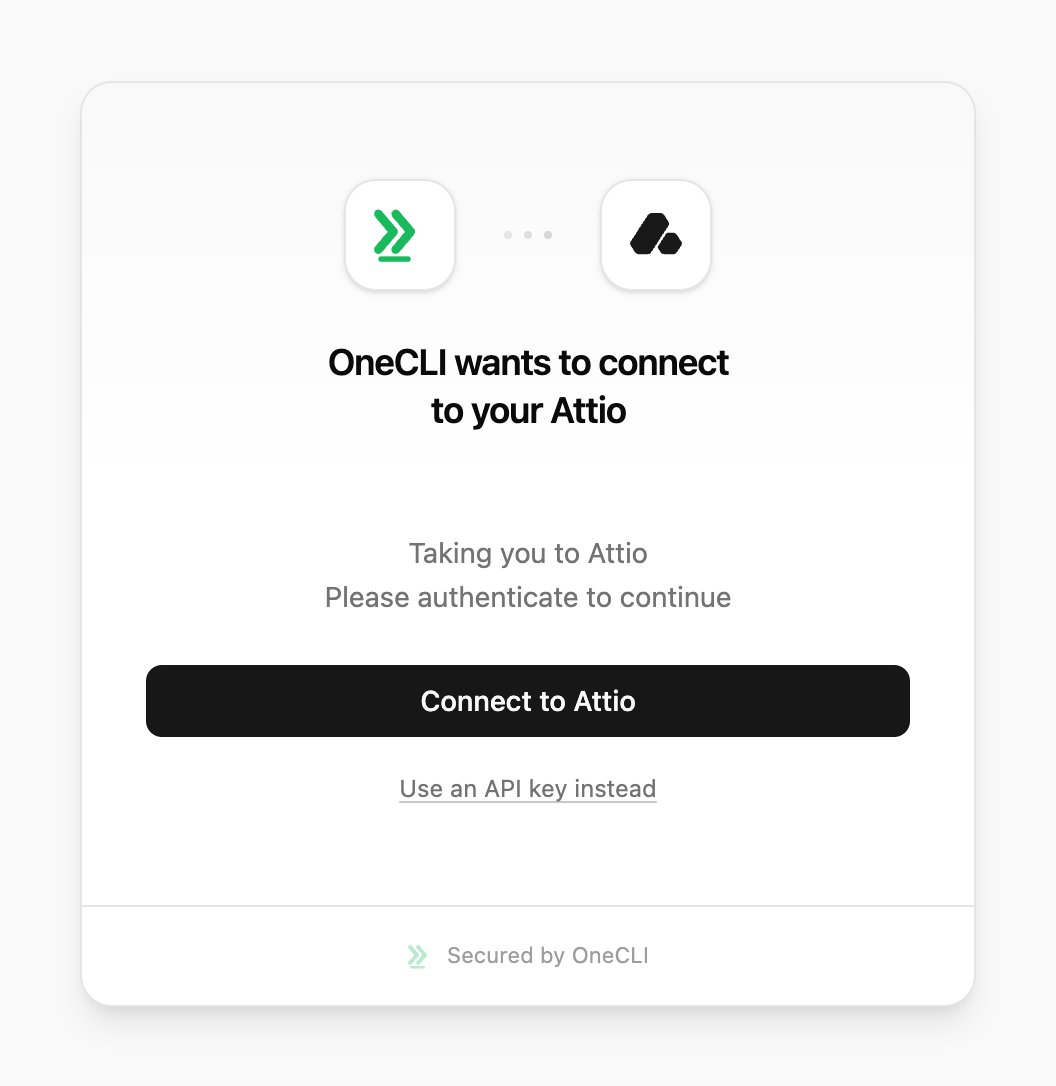
OneCLI connects AI agents to Attio through OAuth or a scoped API key. Agents can read and manage CRM data such as contacts, companies, deals, lists, notes, and tasks, with credentials injected into requests to the Attio API automatically.This is useful for agents that enrich records, move deals through a pipeline, or capture notes and tasks without manual CRM data entry.
OneCLI sits between your agent and Attio as a transparent proxy. When an agent calls the Attio API, the gateway matches the request, injects the stored credential, and forwards it to api.attio.com. Your agent never sees the token or API key.Because the gateway speaks the Attio REST API directly, agents use the same endpoints and request shapes as any Attio client. There is no SDK to install and no Attio-specific code in your agent. You connect Attio once, assign it to an agent, and the agent can read and write CRM data within the permissions you grant.OneCLI also handles the connection lifecycle. For OAuth connections it refreshes expiring access tokens for you. For API key connections it injects your key on every request. In both cases credentials are encrypted at rest and only decrypted inside the gateway at request time.
OAuth works out of the box. If you want tighter control over what an agent can reach, connect Attio with your own API key instead and grant it only the scopes you need, rather than the full OAuth scope set. For example, create a read-only key, or one limited to specific objects.
1
Create a scoped API key in Attio
In Attio, create an API key and select only the scopes your agents require. Attio’s guide walks through this: Generating an API key.
2
Connect in OneCLI
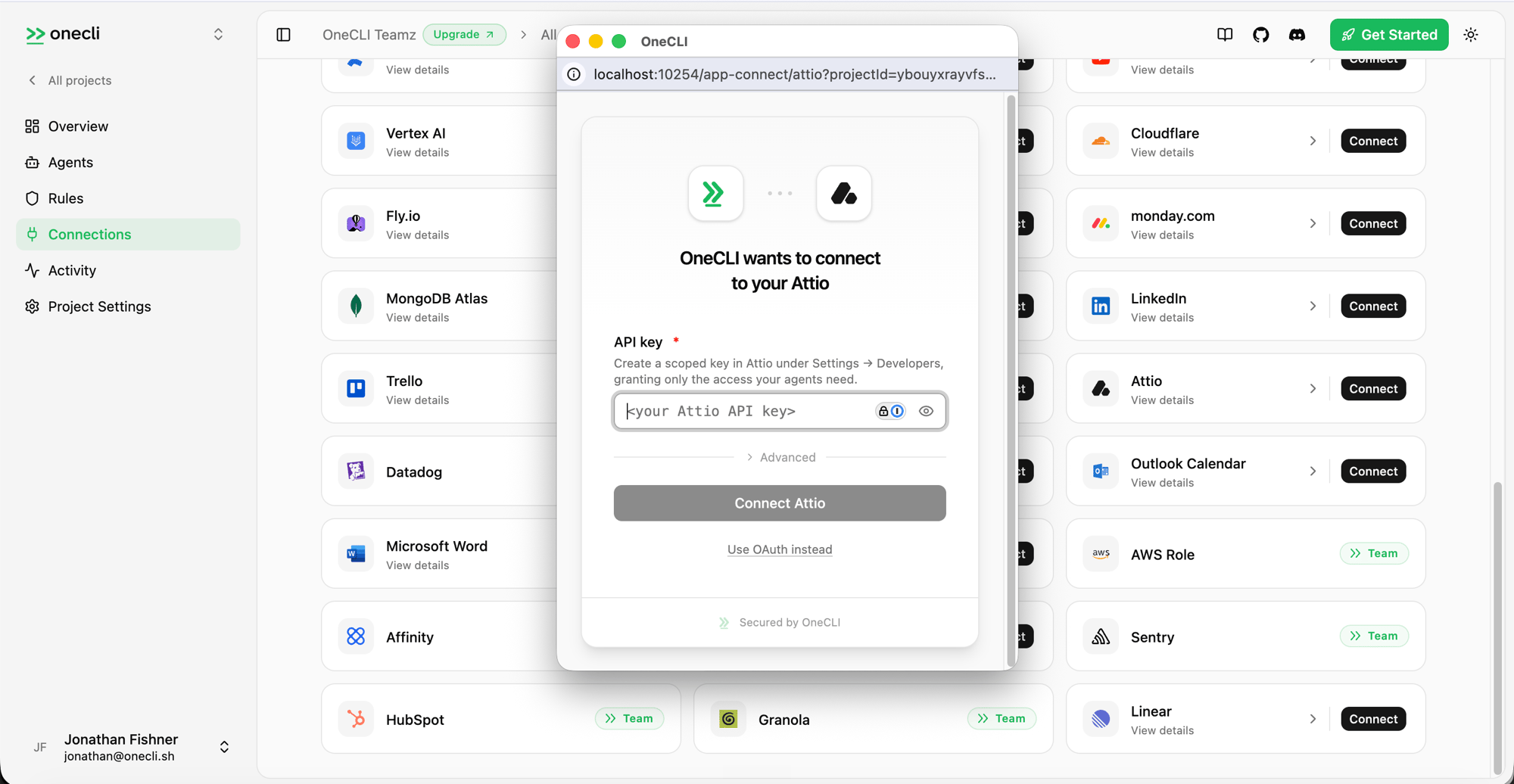
In the OneCLI dashboard, open Connections > Attio, choose Use an API key instead, and paste your key. OneCLI injects it into requests the same way it does an OAuth token.
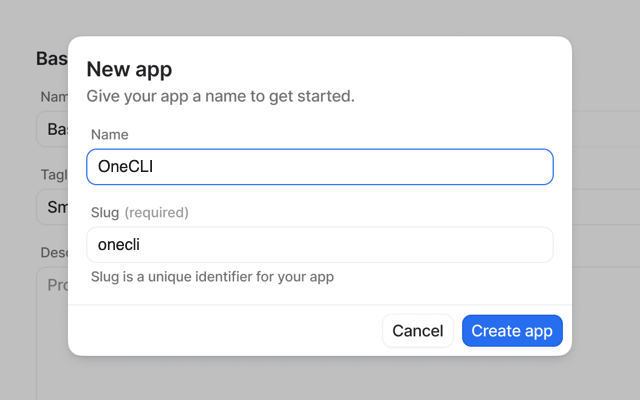
Skip this section on OneCLI Cloud. It’s only for self-hosted OneCLI without ATTIO_CLIENT_ID and ATTIO_CLIENT_SECRET set, or if you want your own company name on Attio’s consent screen. The API key option above works on self-hosted with no app at all.
Turn on the scopes your agents need. OneCLI can request all of these:
Scope
Access
record_permission, object_configuration
Read-write
list_entry, list_configuration
Read-write
note, task, comment, file
Read-write
meeting, webhook
Read-write
user_management, call_recording
Read
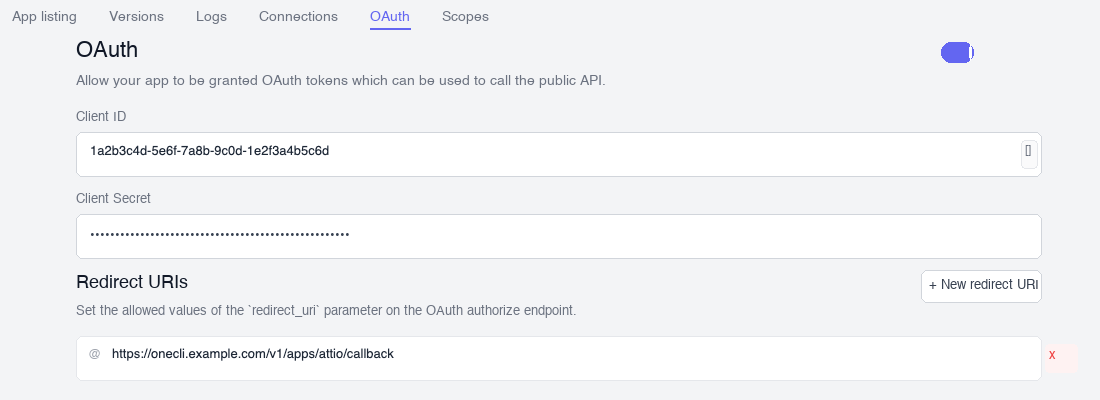
3. Add the redirect URI
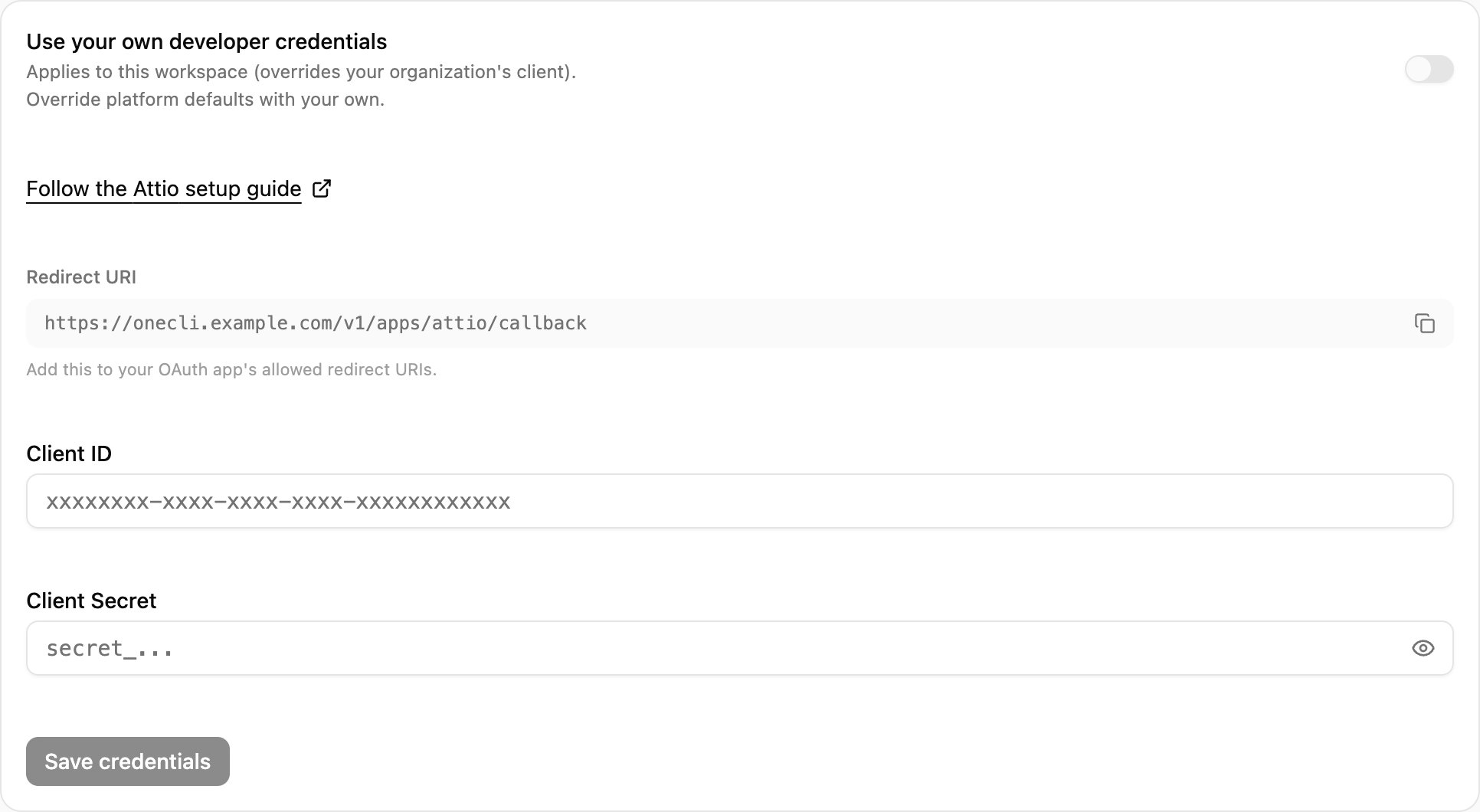
In OneCLI, open Connections > Attio > Custom credentials and copy the Redirect URI. In Attio, paste it into Redirect URIs, and save.
Copy the Redirect URI from Custom credentials in OneCLI.
The OAuth tab of your Attio app, with the OneCLI Redirect URI.
4. Connect with your app
In Attio, copy the app’s Client ID and Client secret. Paste both into Connections > Attio > Custom credentials, select Save & Connect, and allow access in Attio.
Access is per agent: grant the connection to each agent that needs it, choosing per tool what runs freely, what needs human approval, and what stays blocked — a read-only agent is a single grant. Organization rules add guardrails on top, like rate limits and blanket blocks. Everything is checked before credential injection, so a blocked request never reaches Attio.